
To whitelist a site means telling your ad blocker to leave that one site alone while it keeps blocking everywhere else. Newer tools call it an allowlist or “allow on this site”, but it is the same switch. It is the right move in a few specific situations, and the wrong one in a few others. Here is how to do it, what actually changes, and how to know when to switch it back.
When it makes sense
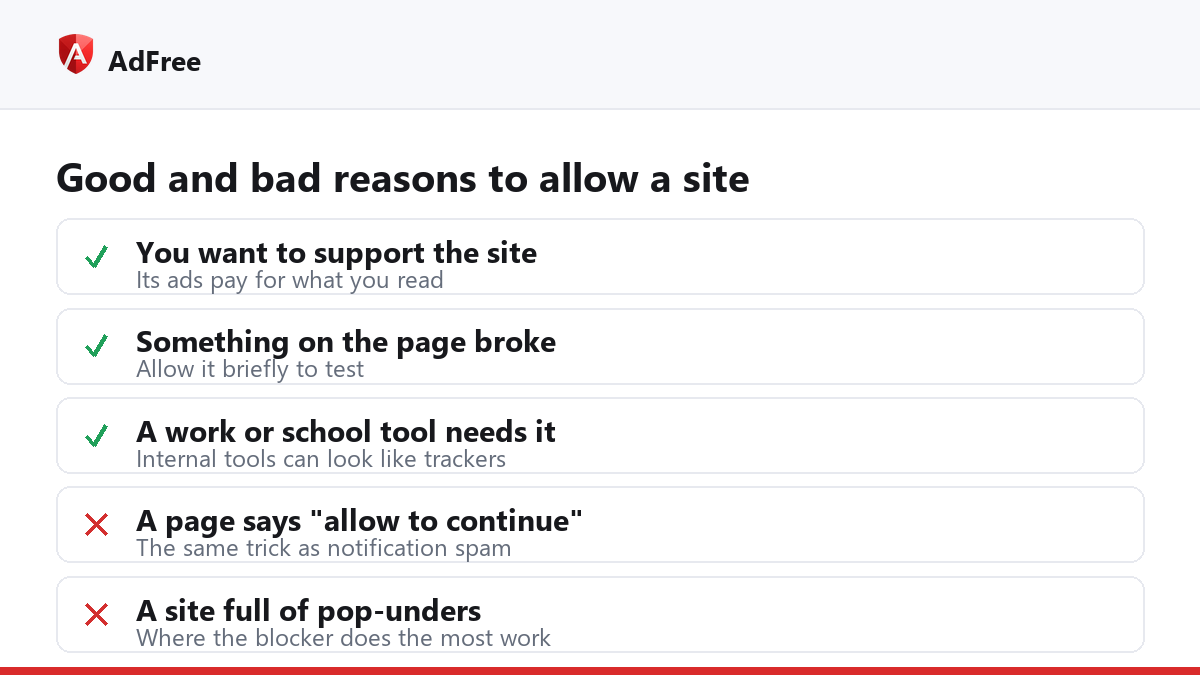
- You want to support the site. Small publishers and independent sites often live on ad income. Allowing ads on the ones you read every day is a direct way to pay for them.
- Something on the site is broken. A video that will not start, a checkout button that does nothing, a comment box that never appears. Allowing the site for a moment tells you whether the blocker is involved.
- A work or school tool needs it. Internal tools sometimes load parts from addresses that look like trackers.
When it does not
- Because a page told you to in order to “continue”, “verify” or “download”. That is the same trick used to push notification spam and fake alerts.
- On streaming and download sites full of pop-unders. Those are the sites where the blocker is doing the most work.
- To fix one site by switching the blocker off everywhere. One site is all you need.
How to whitelist a site in AdFree
- Open the site you want to allow.
- Click the AdFree icon in the toolbar.
- Switch the site row from “Blocking on this site” to “Allowed on this site”.
- Click “Reload the page to apply”. The change applies to pages loaded after it.
Allowing a site in AdFree switches off its ad blocking and its pop-up guard on that site’s pages. Every other site stays exactly as it was. There is no separate screen of allowed sites; to undo it, open the site again and switch the row back to blocking.
Other ad blockers and browsers
Almost every ad blocker puts the same control in the same place: click its toolbar icon while on the site and look for a switch or a “don’t run on this site” option. Some offer a pause for a set time instead, which suits quick tests. A browser’s own pop-up exception is a different setting from an ad blocker’s allowlist, and our guide on how to allow pop-ups for one site covers that one.
| What you want | What to use | Scope |
|---|---|---|
| Support a site you read often | Ad blocker allowlist | That site, until you undo it |
| Test whether the blocker broke a page | Allowlist or a short pause | That site, briefly |
| Let a bank open its window | The browser’s pop-up exception | That site’s windows only |
| Stop blocking everywhere | The blocker’s main switch | Every site; rarely the right fix |
What changes after you whitelist a site?
The site’s own ads load again, along with the trackers that usually come with them. Pages get a little heavier and may load a little slower. If the site uses ad networks that open pop-unders, those can open too. That is the trade you make for supporting the site or getting a feature to work, and it is why a short list is better than a long one.
If the page still misbehaves with the site allowed, the blocker was not the cause. Look at other extensions, clear that one site’s cookies (Google explains how in its guide to managing cookies in Chrome), or try another browser before allowing anything else.
Frequently asked questions
Is “whitelist” the same as “allowlist”?
Yes. Many tools now say allowlist or “allow on this site”. The setting does the same thing.
Do I need to reload after changing it?
Yes. The change applies to pages loaded after it, so reload the tab or open the page again.
Does whitelisting a site affect other tabs?
Only other tabs showing the same site. Every other site stays blocked.
Can a site tell that I whitelisted it?
It can tell that its ads loaded, which is the point when you want to support it. It cannot see the rest of your settings.
Whitelist a site when you want to support it or need to test something on it, and leave the rest of the web blocked. Keep the list short, and switch a site back once the reason for allowing it is gone.
Stop paying attention to ads you never asked for
No account. No tracking. No cost.