
Sometimes you need to allow pop-ups for one site: a bank that shows statements in a new window, a school portal that opens its exam player, a payment page that asks you to confirm with your card issuer. Turning the pop-up blocker off everywhere to get one window open is the wrong fix. Every browser lets you make an exception for a single site, and it takes under a minute.
First: do you actually need to?
Most sign-in and payment windows open from your own click, and browsers let those through. If a site says “please allow pop-ups”, click the button that should open the window once more before changing anything. If nothing happens and the browser shows a “pop-up blocked” icon at the right end of the address bar, it is time for an exception.
How to allow pop-ups for one site in Chrome
- Click the “pop-up blocked” icon in the address bar.
- Select Always allow pop-ups and redirects from the site, then Done.
- Click the site’s button again.
If the icon is not there, go to Settings, Privacy and security, Site settings, Pop-ups and redirects. Next to “Allowed to send pop-ups and use redirects”, click Add and type the site’s address. Google’s pop-up help page shows the same screens, including the [*.]example.com pattern for covering every subdomain of a site.
Microsoft Edge
Open Settings and find Pop-ups and redirects: under Cookies and site permissions in most versions, or under Site permissions in newer ones. Leave Block switched on, and next to Allow click Add and enter the address, including https://. Microsoft’s article on pop-ups in Edge keeps the current path.
Firefox
When Firefox blocks a window it shows a bar under the toolbar with an Options button, which lets you allow that site directly. Otherwise go to Settings, Privacy & Security, Permissions, and next to Block pop-up windows click Exceptions. Type the address, click Allow, then Save Changes. Mozilla documents it on its pop-up blocker page.
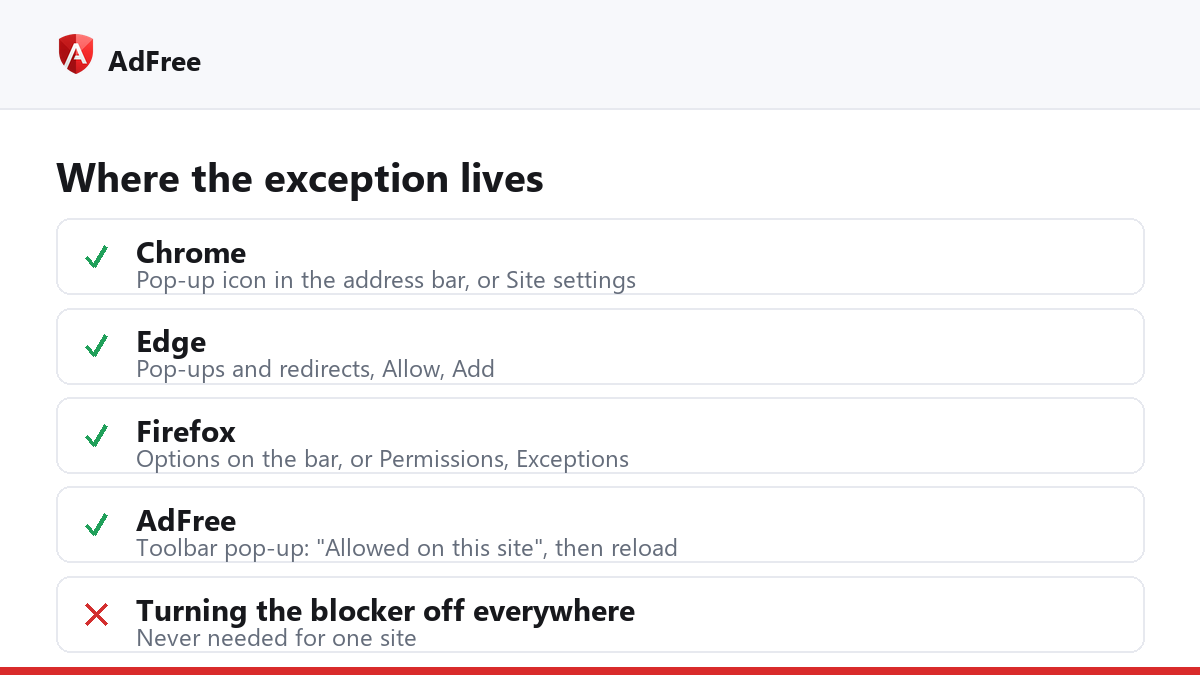
| Browser | Fastest route | Settings route |
|---|---|---|
| Chrome | Pop-up icon in the address bar | Site settings, Pop-ups and redirects, Allowed, Add |
| Edge | Pop-up icon in the address bar | Pop-ups and redirects, Allow, Add |
| Firefox | Options on the blocked pop-up bar | Privacy & Security, Permissions, Exceptions |
| AdFree | Site switch in the toolbar pop-up | Not needed |
Still blocked? Check your ad blocker
If the browser allows the site and the window still does not open, an extension is the next suspect. In AdFree, click the toolbar icon while you are on the site and switch the site row from “Blocking on this site” to “Allowed on this site”, then use “Reload the page to apply”. That turns off AdFree’s pop-up guard and its ad blocking for that one site; everything else stays protected. Switch it back the same way once you are done.
You should rarely need this. AdFree’s guard lets the first window from your click through, which is exactly how bank and payment windows open; it refuses windows opened with no click and extra windows from the same click. For more on how the two layers differ, see popup blocker vs ad blocker.
Keep the exception list short
- Add the exact site, not a whole search engine or a site you reached through an ad.
- Never allow a site because a page tells you to in order to “continue” or “verify”. That is a common trick, and the same one used for notification spam.
- Look at the list once in a while and remove sites you no longer use.
Frequently asked questions
Does allowing pop-ups also allow notifications?
No. Pop-ups and notifications are separate permissions. Allowing one does not grant the other.
Why does the window open but stay blank?
The window may load content from another address that an extension blocks. Allow the site in your ad blocker as well, then reload.
Is it safe to allow pop-ups for my bank?
Yes, as long as you typed the bank’s address yourself or used a bookmark. The risk is in exceptions for sites you do not know.
To allow pop-ups for one site, use the pop-up icon in the address bar or the site’s entry in your browser’s settings, and allow the site in your ad blocker only if the browser alone is not enough. Every other site stays protected.
Stop paying attention to ads you never asked for
No account. No tracking. No cost.