
An ad blocker that worked perfectly last month suddenly lets a mid-roll through, and the obvious conclusion is that the extension has stopped working. Occasionally that is true. Far more often, YouTube ads still showing in your player comes down to one of a handful of mundane causes — a stale tab, a paused extension, a version that is a week behind. Working through them in order takes about two minutes and usually ends the problem.
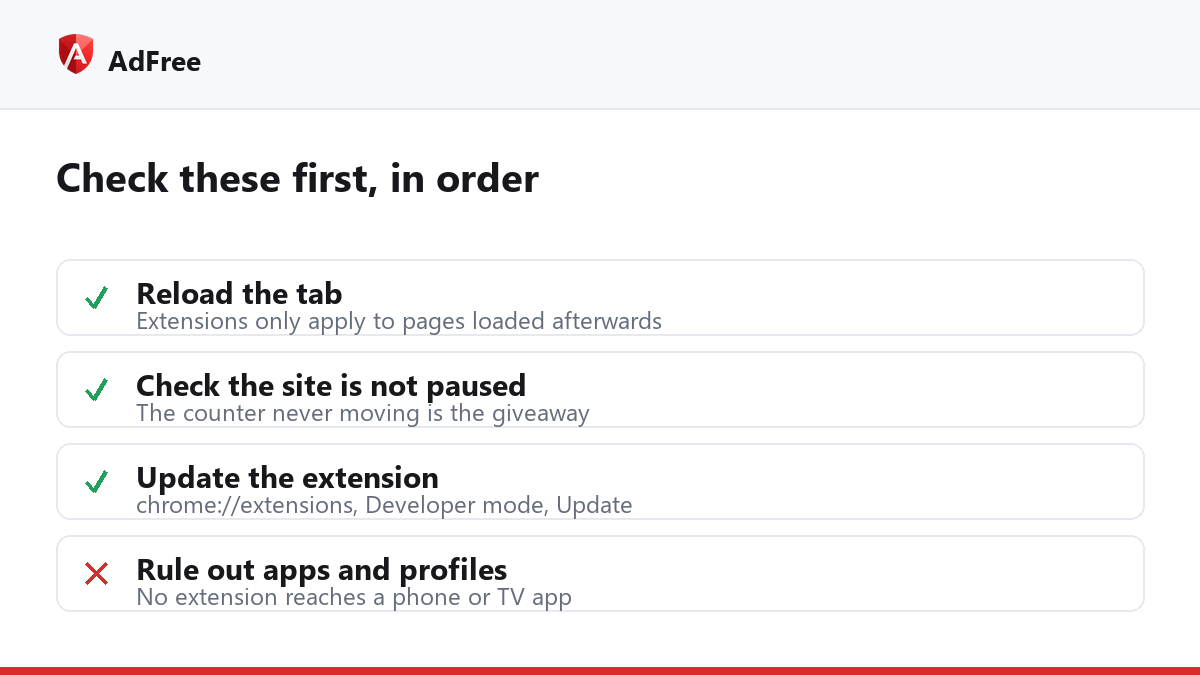
1. Reload the tab you are watching in
Browser extensions only take effect on pages loaded after they were installed or updated. If the YouTube tab has been sitting open since before the last extension update — and on a long-lived browser session that is common — the blocking rules were never applied to it. Reload once and watch again before changing any settings.
2. Check whether blocking is paused for the site
Most blockers can be switched off per site, and it is easy to do by accident when troubleshooting something else weeks earlier. Open the extension’s toolbar popup while you are on YouTube and confirm the main switch is on for this site. The counter is the giveaway: if it never moves on a page full of advertising, nothing is being filtered there.
3. Update the extension
YouTube changes its player and its ad delivery often, sometimes several times a month. Chrome updates extensions in the background on its own schedule, which can lag by days. To force it, open chrome://extensions, switch on Developer mode and press Update. This single step resolves a large share of reports where YouTube ads still showing began after a quiet period of everything working.
4. Why are YouTube ads still showing on some videos?
YouTube serves some advertising from the same hostnames and the same player code as the video itself. A request-level blocker can refuse an ad request cleanly; it cannot refuse the video stream without breaking playback. So a good extension mixes two techniques — drop the ad requests it can identify, and skip or mute the break when one starts anyway, restoring your volume and playback speed the moment it ends.
| Symptom | Likely cause | What helps |
|---|---|---|
| Ads returned suddenly after months | Player change at YouTube’s end | Update the extension |
| Ads only in one tab | Tab loaded before the update | Reload the tab |
| Counter never increases | Blocking paused for the site | Re-enable in the popup |
| Black screen instead of an ad | Request blocked, break not skipped | Update; report if it persists |
| Volume stuck low after a break | Mute not restored | Update; this is a fixable bug |
5. Rule out the account-level causes
- Watching in an app rather than the browser. A browser extension cannot touch the YouTube mobile app or a TV app.
- A second profile. Extensions are per profile; a guest or work profile has its own set.
- Sponsor segments. A creator reading an advertisement inside the video is part of the video file. No blocker removes it, because there is no separate request to block.
- Enterprise policy. A managed device can disable extensions entirely;
chrome://policywill say so.
Why does it work again after an update?
Because ad blocking on a large platform is maintenance, not a solved problem. Google changes delivery, the filter lists follow, and the gap between the two is where reports appear. Google publishes the policy side of this in its ad blocker help article; the technical side is simply a race, which is why the version you are running matters more than which extension you chose.
Should I report the video or the extension?
Report the page. A blocking rule is written against an address, so the address of the page where the advertising appeared is the single most useful thing you can send. AdFree has a report button in its popup that sends exactly that and nothing else — no history, no identifier. The user guide covers what it transmits.
Run through the list in order — reload, check the switch, update, then rule out apps and profiles — and the great majority of cases where YouTube ads still showing up in your player resolve without touching a setting you will later regret changing.
Stop paying attention to ads you never asked for
No account. No tracking. No cost.